This article shows you how to quickly log into your Sky router. You will find out how to change settings, tips to make your WiFi safer, and fix potential Sky router login problems. Whether you are updating your WiFi password or fixing internet issues, we will guide you through each step.
Why Login To Your Sky Hub?
Accessing your Sky Hub admin settings allows you to take control of your home network. Here are a few reasons why you should learn the Sky router login steps.
- To change your WiFi password to something more secure and control who can connect to your network.
- To rename your network SSID, adjust the bandwidth settings, or set up guest networks.
- To set internet access schedules and block inappropriate content to keep your family safe online.
- To check your connection status, reboot your router remotely, and update firmware to improve performance.
Sky Router Login: Step-By-Step Guide
This detailed guide is designed to help you follow and complete the Sky router login steps easily.
Connect To Your Network
Before you can access the router settings, your device must be connected to your Sky broadband network. There are two ways to establish this connection:
- WiFi Connection – Select your network from the WiFi settings on your device and enter the password. This is ideal for smartphones, tablets, and laptops.
- Ethernet Connection – Use an Ethernet cable to connect your computer directly to the Sky router. This method is recommended for a stable connection, especially if you are configuring settings for the first time or troubleshooting.
Open A Web Browser
Once connected to the network, the next step is to access the router login page.
Launch any web browser you prefer, such as Chrome, Firefox, Safari, or Edge.
Enter The IP Address

Type 192.168.0.1 into the browser’s address bar. This IP address is the gateway to access the settings for SKY HUB, SKY Q HUB, SKY MAX HUB and SKY BROADBAND HUB. Press Enter to proceed.
Access The Sky Router Settings
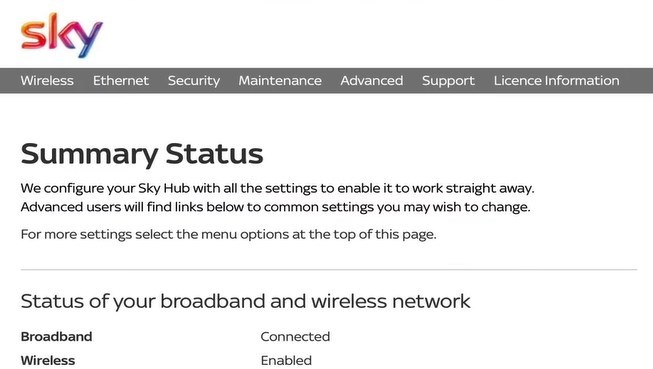
After entering the correct IP address details, you will be directed to the router’s admin dashboard. Here, you can:
- Modify your WiFi network stings (network name (SSID), password, and channels)
- Manage connected devices and set limits or prioritize traffic.
- Access parental controls, set up guest networks, or configure firewall settings for additional security.
Enter The Admin Login Credentials
If you want to make any changes, the router login page will ask you to enter a username and password. This is an important step for security purposes.
Sky Router Login Username And Password
- SKY HUB and SKY Q HUB Users:
- Username: admin
- Password: sky
- SKY BROADBAND HUB and SKY MAX HUB Users:
- Username: admin
- Password: This is the WiFi password found on your router label. The SKY BROADBAND and SKY MAX HUB uses a unique password for enhanced security.
Troubleshooting Login Issues With Your Sky Router
Having problems while trying to log into your Sky Hub can be frustrating. However, check these troubleshooting steps you can take to fix these issues.
Verify Your Connection
In the beginning, you need to make sure that your device is properly connected to your Sky broadband network.
If you are using WiFi, check that you are connected to the correct network name (SSID). For a more stable connection, consider using an Ethernet cable to directly connect your device to the Sky Hub. A direct connection can eliminate potential WiFi signal issues.
Double-Check the IP Address
A common mistake is entering the wrong IP address into the browser. The standard IP address for Sky routers is 192.168.0.1. Type this IP address into your browser’s address bar and make sure there are no typos. It is easy to mistype numbers or forget a dot, which will prevent you from accessing the login page.
You can also use the “ipconfig” command in the Command Prompt if you are using Windows. The router’s IP will be listed as Default Gateway in the results.

Use The Correct Login Details
Using the correct admin login details is crucial for accessing your Sky Hub settings. Remember:
- For SKY HUB and SKY Q HUB, the default username is admin, and the password is sky.
- For SKY BROADBAND and SKY MAX HUB, the username remains admin, but the password is the WiFi password found on the router label.
If you have changed the admin password in the past and can’t remember it, this could be why you are unable to log in.
Browser Issues
Sometimes, the problem lies not with the router but with the web browser you are using. If you suspect this, try the following:
- Clear Browser Cache – Clearing your browser’s cache and cookies can resolve these issues.
- Use a Different Browser – If clearing the cache doesn’t help, try accessing the Sky router IP address using a different web browser.
Router Factory Reset
If none of the above solutions work, you may need to reset your Sky Hub to its factory settings. This will erase all custom settings, including your WiFi password, network name, and any specific configurations you have set up earlier.
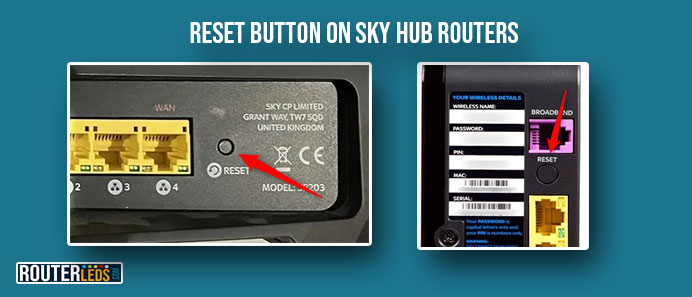
To reset:
- Look for a small reset button on the back of your router.
- Press and hold the reset button for about 10 seconds.
- Wait for the router to reboot. This may take a few minutes so wait till the Sky router lights stabilize.
- Once reset, should be able to login using the default login details mentioned earlier in this guide. But remember that you will need to set up your router again as if it were new.
Frequently Asked Questions
Yes, you can change your Sky WiFi password through the router login. After logging in with the default credentials, navigate to the WiFi settings section where you can update your password. Remember to save your changes. You will need to reconnect your wireless devices using the new WiFi password after that.
If you are having trouble logging in with the default username and password, make sure you are using the correct login details for your router model. If you have changed the default admin password before, use that one instead.
In case you forget the login password for your Sky router, resetting it to factory defaults is your way out. Hold down the reset button for 10 seconds. This will restore the default username and password, but be aware that it will also erase all custom settings.
Conclusion
By following these steps, you shouldn’t have any problems completing the Sky router login steps. After that, you can easily improve your network security, manage connectivity, or set parental controls.
Remember, if you run into any issues during the login process, refer back to our troubleshooting section above.
