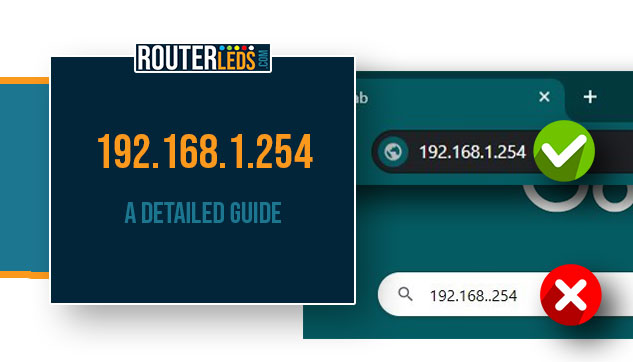
The IP address 192.168.1.254 is your gateway to managing your Wi-Fi network. This blog post will guide you through everything you need to know about this IP address, from understanding its purpose to troubleshooting common login issues.
Key Points To Understand
When dealing with the IP address 192.168.1.254 for router settings, here are the essential points to keep in mind:
- 192.168.1.254 is a private IP address used to access the admin panel of your router.
- Popular router brands that use 192.168.1.254 as a default IP include Linksys, Alcatel, and Westell DSL Modems.
- Access Procedure:
- Connect your device to the router.
- Type http://192.168.1.254 in your web browser URL bar.
- Log in using the admin username and password.
- The admin username and password can vary, but common combinations are ‘admin/admin,’ ‘admin/blank,’ or ‘blank/admin.’ Check the user manual or the sticker on your router or modem for specifics.
- Troubleshooting Login Issues:
- Make sure that the device is connected to the router correctly.
- Confirm that 192.168.1.254 is the router default IP.
- Use the correct login details.
- Reset the router to factory settings if necessary.
What Is 192.168.1.254?
192.168.1.254 is a private IP address used as the default gateway for accessing the admin panel of some routers. This IP address is set by manufacturers and allows users to manage their network settings. Being a private address, it cannot be accessed from the Internet, which makes your local network secure.
Routers That Use 192.168.1.254
Several router brands use 192.168.1.254 as their default gateway. Some of the most popular ones include Linksys, Alcatel, and Westell DSL Modems, among others. It is important to check your user manual or label to confirm if this IP is used for your model.
What ISPs Use 192.168.1.254?
Several Internet Service Providers (ISPs) use the IP address 192.168.1.254 for their routers or modems.
AT&T is one such provider that uses this IP address for accessing modem and router settings.
Additionally, Frontier Communications and EE Broadband, also use this IP address for some of their routers.
If you are using a different ISP, it is recommended to check your router manual or consult with your ISP to confirm the correct IP address.
How To Use 192.168.1.254
Accessing your router settings using 192.168.1.254 is simple and straightforward:
STEP 1: Connect To Your Network
Make sure your device is connected to the router, either via Wi-Fi or an Ethernet cable. It is important to have both the modem or router and your device (smartphone, tablet, or computer) on the same network.
STEP 2: Open A Web Browser
Launch any web browser you have installed on your device and enter http://192.168.1.254 in the address bar.

STEP 3: Enter The Admin Login Details
You will be asked to enter a username and password if the IP you have just entered is correct. Type them in and press Login.
You will be taken to the router admin page.
192.168.1.254 Usernames And Passwords
The default usernames and passwords for routers using 192.168.1.254 vary by brand. Common combinations include:
- Username: admin | Password: admin
- Username: [blank] | Password: admin
- Username: admin | Password: [blank]
- Username: admin | Password: [the router/modem serial number]
- Username: admin | Password: [the default WiFi password]
It is best to refer to your router’s documentation for specific details.
192.168.1.254 Login Problems
Sometimes the 192.168.1.254 login process doesn’t go smoothly. If you are having problems logging into the router admin dashboard, check these troubleshooting tips:
- Check the connection to make sure your device is properly connected to the router.
- Double-check that 192.168.1.254 is the correct IP for your router.
- Make sureyou are using the right username and password combination.
- If all else fails, reset your router to its factory settings. You will be able to login using the default IP and login details after that.
Pro Tips For Managing Your Router Using 192.168.1.254
To use 192.168.1.254 better, here are some expert tips:
- Frequently access your router settings through 192.168.1.254. This can help you spot unusual activities or unauthorized connections in your network.
- Change the default admin username and password to something more secure. This will improve your network security.
- Regularly check for and install firmware updates for better security and performance.
- Before you make any significant changes, backup your current router settings. This allows you to restore the previous configuration if something goes wrong.
- Use the admin panel to optimize your Wi-Fi settings. For example, you can change your Wi-Fi channel to reduce interference and improve signal strength.
- Use the parental control features available through the admin panel. This can help you manage internet usage and protect children from inappropriate content.
- Set up a guest network for visitors. This keeps your main network secure while providing internet access to guests.
- Explore and activate network security features like firewalls, MAC address filtering, and WPA3 encryption to enhance your network security.
By following these pro tips, you can effectively manage and secure your home network using the 192.168.1.254 IP address.
Check If 192.168.1.254 Is The Correct IP
In order to confirm that 192.168.1.254 is the correct IP address for your router, follow these instructions.
- Check Your Router or Modem Documentation:
- Look for a label on the router/modem itself, which often lists the default IP address and admin username and password.
- Refer to the user manual that came with your router. The default IP address is usually mentioned under the network settings section.
- Use the Command Prompt (for Windows Users):
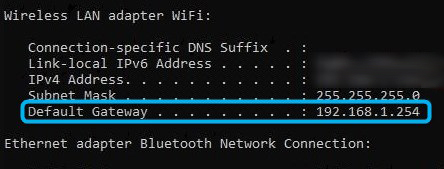
- Press Win + R, type cmd, and press Enter to open the Command Prompt.
- In the Command Prompt, type ipconfig and press Enter.
- Look for the “Default Gateway” in the results. This is typically your router’s IP address.
- Use System Preferences (for Mac Users):
- Navigate to the Apple menu and choose ‘System Preferences.’
- Locate the ‘Network’ option and choose your currently active network connection (Wi-Fi or Ethernet).
- Click on the ‘Advanced’ button and navigate to the ‘TCP/IP’ tab. You’ll find your router’s IP address listed under ‘Router.’
- Consult Your Internet Service Provider (ISP):
- If you are still unsure, contact your ISP. They can provide information about the default settings of your router or modem, including the IP address.
- Try Other Common Default IP Addresses:
- If 192.168.1.254 doesn’t work, other common default IP addresses to try include 192.168.0.1, 192.168.1.1, or 10.0.0.1.
By following these steps, you can confirm whether 192.168.1.254 is the correct IP address for accessing your router’s settings. This is an important step before you try to log in, especially if you are having problems accessing the router admin page.
Default Login Credentials For Various Router Brands
| Router Brand | Username | Password |
| Linksys | admin | admin |
| Netgear | admin | password |
| Netgear (Older Models) | admin | 1234 |
| D-Link | admin | (blank) |
| D-Link (Some Models) | admin | admin |
| TP-Link | admin | admin |
| Asus | admin | admin |
| Motorola | admin | password |
| Motorola | motorola | password |
| Motorola | (blank) | admin |
| Belkin | (blank) | admin |
| Belkin (Some Models) | admin | admin |
Please note that these are default credentials and should be changed to improve the security of your router.
NOTE: For exact details, it is always best to check the router’s manual or label on the router itself, as the default login credentials can vary even within the same brand based on the model.
Avoid Common Mistakes
You should take care when entering the IP address 192.168.1.254. It is easy to make a mistake and here are some of the most common ones.
- Correct Format and Punctuation.
- Always enter the IP address as a numerical string, like 192.168.1.254.
- Do not include any spaces, such as 192.168. 1.254 or 192 .168.1.254.
- Use periods to separate the numbers, not commas or other symbols.
- Avoid Typographical Errors.
- Be careful not to replace numbers with letters, such as using l (lowercase L) or I (uppercase i) instead of the number 1. For instance, 192.168.l.254 or 192.168.I.254 are incorrect.
- Do not add extra characters or numbers, like 192.168.1.254.1 or 192.168.1254.
- No Additional Prefixes or Suffixes.
- Do not add www, http://, or .com at the beginning or end of the IP address. For example, avoid entering www.192.168.1.254, http://192.168.1.254.com, or 192.168.1.254.net.
- Use the Browser Correctly.
- Enter the IP address directly into your web browser’s address bar, not in a search engine field or toolbar.
- Check Your Router’s IP Address:
- If you are unsure about the IP address, you can often find it labeled on the router, in the manual, or by using the ipconfig command in Windows Command Prompt or the equivalent in other operating systems.
- Common Mistakes to Avoid:
- Incorrect: 192.168.l.254, 192.168.l 254, http://192.168.l.254, https //192.168.l.254, http //192.168.l.254.
- Correct: 192.168.1.254, http://192.168.1.254.
These tips should help you avoid common typing errors and make sure you are entering the IP address correctly.
Conclusion
Knowing how to use 192.168.1.254 to access your router settings makes it easy to manage your home network. Whether you need to change your Wi-Fi password, set up parental controls, or improve security settings, this IP address is your way to have a stable and secured home network.
