Do you want to manage your BT Broadband connection more efficiently? Knowing the BT Hub login steps is one of the first things you should learn then.
In this article, we will walk you through the steps needed to access your BT Hub Manager and help you troubleshoot common login issues.
When Should You Login To Your BT Hub?
There are several different reasons and situations when you need to login to your BT Hub. So, knowing the BT Hub login steps is crucial when you are:
- Setting up your broadband connection for the first time.
- Changing Wi-Fi settings, such as your network name or password.
- Checking your broadband performance (speed and BT Hub connectivity issues).
- Managing access controls, like parental settings and guest networks.
- Updating firmware to make sure your Hub runs the latest firmware.
BT Hub Login Requirements
Before logging in, make sure you have the following.
- A BT Broadband connection and your BT Hub set up and powered on.
- A device connected to your BT Hub, either via Wi-Fi or Ethernet cable.
- The default gateway IP address for your BT Hub (normally it is 192.168.1.254 and you can also find it on the back of the Hub).
- Your BT Hub password, which is also printed on the back of the Hub just like the IP address.
How To Login To BT Hub Properly
This section provides a detailed guide on how to access your BT Hub Manager. Take your time and go through the following steps.
Open Your Web Browser
You can use any popular web browser like Google Chrome, Mozilla Firefox, Safari, or Microsoft Edge. Make sure to use one that is up-to-date.
Enter The Default BT Hub IP Address
The default gateway IP is typically found on the back of your BT Hub or in the documentation provided when you first received your Hub. It is usually 192.168.1.254.

Type this IP address into your browser’s address bar. Make sure to enter it correctly, as mistyping can lead to an error page or no page at all.
Access The BT Hub Login Page
Once you enter the correct IP address and press Enter on the keyboard (or Go/Return on your mobile device), you should see the BT Hub Manager page.
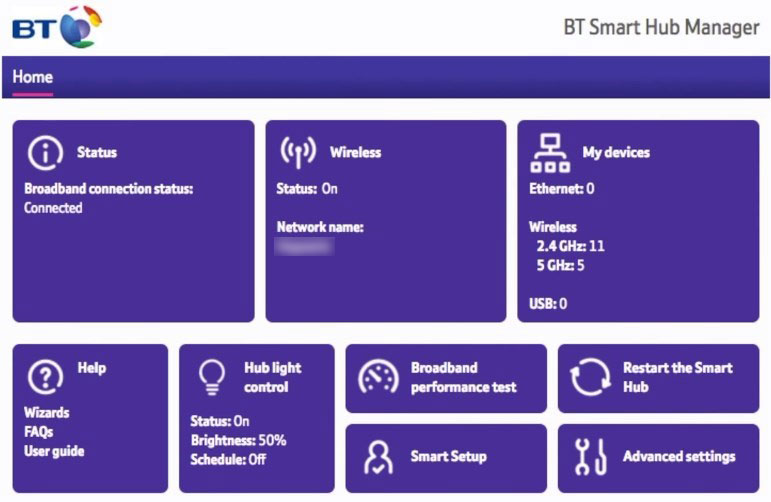
When you want to make any changes in the settings you will be asked to enter the admin password.
Enter Your Admin Password
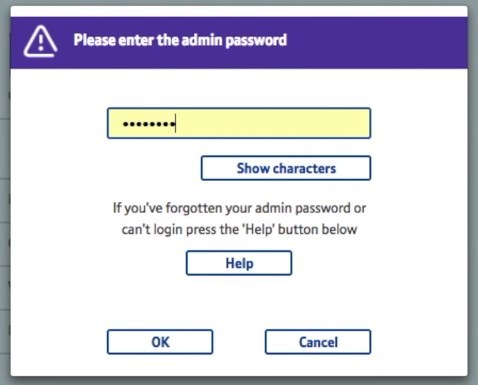
The admin password is different from your Wi-Fi password. It is usually found on the Hub itself, often labeled as the “admin password” or “Hub password”.
Carefully enter the password, as it is case-sensitive. Make sure that Caps-Lock is off on your keyboard to avoid any errors.
Now you can view your broadband status, change Wi-Fi settings, set up parental controls, enable or disable the BT Hub lights, update Hub firmware and access various other features.
Can’t Login To BT Hub? Read This
Having problems accessing your BT Hub settings can be frustrating, but there are several troubleshooting steps to take to login successfully.
Here is a breakdown of common problems and how to fix them.
Check Your Connection
Make sure the device you are using to login is connected to your BT Hub network. This can be a wired connection via Ethernet or a wireless connection to your BT Hub Wi-Fi.
Weak Wi-Fi signals can also cause connection issues. If you are using Wi-Fi, try moving closer to the Hub or use a device connected via Ethernet.
Verify The IP Address
Confirm that you are using the correct default gateway IP address for your BT Hub. This information is often found on the back of the Hub or in the user manual.
You can also find the IP on your own, using the ipconfig command in the Command Prompt in Windows, or by checking the network settings on your smartphone.
Additionally, double-check for any typing errors while entering the IP address in the browser. Incorrect IPs can lead to a dead end.
Password Troubles
Make sure you are using the correct admin password, which is different from your Wi-Fi password. This is usually printed on a sticker on the Hub itself.
Check for accidental Caps-Lock activation or typing errors while entering the password.
If you have forgotten the admin password, you can reset your Hub to its factory settings. This will allow you to login to your BT Hub using the default username and password.
Browser Issues
Sometimes, certain browsers can have compatibility issues. Try accessing the login page through a different web browser.
Clear your browser’s cache and cookies, as these can sometimes interfere with the login process.
Restart Your BT Hub
Turn off your BT Hub, wait for a minute, and then turn it back on. This simple restart can resolve many connectivity and login issues.
In some cases, a complete reboot of the Hub is necessary. Unplug the Hub from the power source, wait 2-3 minutes, and then plug it back in.
Update Your Device
Make sure that the device you are using to log in is up-to-date with the latest operating system updates.
Also, make sure your web browser is updated to the latest version.
Contact BT Broadband Support
If none of the above steps work, contact BT Broadband support. They can help you overcome the BT Hub login issue.
Frequently Asked Questions
To find your BT Hub IP address, check the label on the back of the Hub. Typically, it is 192.168.1.254 or similar. Entering this IP address in your web browser’s address bar will take you to the BT Hub login page.
Yes, you can change your BT Hub admin password for security reasons. After you login with the default password, navigate to the settings menu where you can update your admin password. It is recommended to create a strong, unique password.
If the BT Hub login page isn’t loading, first check that you are connected to your BT network. If the issue persists, clear your browser’s cache or use a different browser. Check whether you are using the correct Hub IP address as well.
Yes, you can manage BT Hub settings using a mobile device. Connect your device to your BT Hub Wi-Fi network, enter the default IP address in your mobile browser, and log in to access the settings.
If you forget your login details, you can reset your BT Hub to its factory settings. Press and hold your Hub reset button for 5 seconds. Note that this will erase all custom settings.
Conclusion
The BT Hub login procedure is a straightforward process that allows you to manage your network with ease. Whether you are setting it up for the first time, tweaking your Wi-Fi settings, or troubleshooting, the BT Hub Manager is your go-to resource.
Moreover, if you can’t login for some reason, don’t hesitate to reach out to BT Broadband support for assistance.
