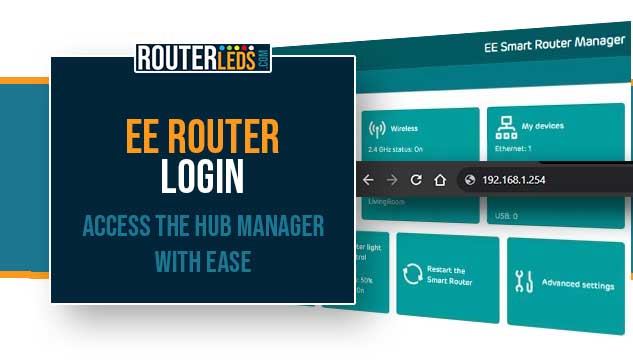
Do you need to access your EE router settings? In this article, we are going to walk you through the EE router login steps.
At the same time, we will explain why it is important to access your router’s admin settings, and provide helpful tips to troubleshoot common login problems.
Let’s get started!
Key Points To Understand
- Logging into your EE router is important for improving your network security and personalizing your Wi-Fi network.
- To log in, connect to your network, open a web browser, enter the router IP address (usually 192.168.1.254), and type the default login username and password found on your router or in the manual.
- After you login to your EE router, you can customize your Wi-Fi network name, and passwords, set up parental controls and so on.
- Common problems include forgotten login details, connectivity issues, and browser glitches. Resetting the router to factory settings can help if you have forgotten your admin login details. Make sure you have a stable connection and try clearing the browser cache or restarting your device for other issues.
Why You Need to Log In to Your EE Router?
Enhance Network Security
If you want to secure your home network, the first thing to do is to login to your EE router. When you access the router admin settings, you can update or change your Wi-Fi password, set up guest networks, and upgrade the router firmware, and so on.
Personalize Your Network
The admin dashboard will let you personalize your network. This includes renaming your Wi-Fi network, setting parental controls, and managing connected devices.
How to Log In to Your EE Router?
Connect To Your Network
First, it is important to establish a connection between your device and the EE router.
If you are using a wireless device, connect to your EE router’s Wi-Fi network. The network name (SSID) and password are usually printed on the router or in its manual.
For a more stable connection, especially when troubleshooting, use an Ethernet cable to connect your device directly to the router.
Open Your Web Browser
Now you need to use a web browser to access the router’s login page.
You can use any web browser (Chrome, Firefox, Safari, Edge, etc.). Just make sure that the browser is up to date to avoid compatibility issues.
Enter The Router IP Address
Now we need to access the router login page via its IP address.

Type 192.168.1.254 into the browser’s address bar. These are the most common IP addresses for EE routers.
Enter The Admin Login Details
When the router login page appears, enter the username and password.
Check your router’s sticker or manual for the admin username and password. If there is no sticker the default username is often admin, and the default password can be admin, password, or left blank.
If you have previously changed these details for security reasons, use your updated username and password.
Access The EE Router Admin Panel
If the router admin username and password are correct you will gain access to the EE router settings.
After you log in, you will see the router admin dashboard where you can modify settings like Wi-Fi password, network name, and parental controls.
By following these detailed steps, you should be able to login to your EE router admin settings easily.
Pro Tips
- If you are not sure what your router IP address is, check the sticker on the EE router or check the user manual.
- Always change the default login password to improve your router and network security.
EE Router Login Problems: Troubleshooting Tips
Forgotten Admin Login Details
If you have changed and forgotten your admin login username and password, it will be necessary to factory reset your EE router. This will restore the router back to its default settings.
Mistyping The IP Address Or Admin Password
The IP address consists of numbers and dots only. Replacing a number with a letter or typing the IP incorrectly will make the login process fail at that point.
You also need to know that the admin password is case-sensitive. Therefore make sure to type it correctly.
Connectivity Issues
Make sure your device is properly connected to the router. If you are using Wi-Fi, check the signal strength. Also check that you are not using your mobile internet connection.
If you are using a wired connection, verify that the Ethernet cable is firmly connected.
Browser And Software Glitches
Sometimes, in order to resolve some router login issues, you have to clear your browser cache or restart your device. Make sure your browser is updated to its latest version.
Frequently Asked Questions
The default login IP for most EE routers is typically 192.168.1.254. You can find this information on the router itself, often on a sticker at the back, or in the user manual that came with the router. On Windows machines you can use the ipconfig command in Command Prompt. The router IP will be listed as Default Gateway.
To reset your EE router, find the reset button. Press and hold it for about 20 seconds using a paperclip or similar object. This will restore the router to its factory settings, including default login details. A solid blue or aqua light on your EE router means that the factory reset was successful.
If you are having problems accessing your EE router login page, make sure that your device is properly connected to the router, either via Wi-Fi or an Ethernet cable. Also, verify that you are entering the correct IP address and that your web browser is up to date.
Yes, it is very important for security purposes. Changing the default login password helps protect your router from unauthorized access and potential security breaches.
Yes, most EE routers allow you to set up parental controls via the admin panel. You can manage access times and restrict certain websites to ensure a safe browsing experience for your children.
Conclusion
Knowing the EE router login steps allows you to customize and secure your home network. With this guide, accessing the EE router admin dashboard should be pretty simple and straightforward.
Remember, keeping your network secure and personalized will provide a great internet experience. If you experience any EE router login issues or you need further assistance, make sure to contact EE support. They should help you access your EE router settings in no time.
