Learn the exact Plusnet router login steps to access and modify your Plusnet router settings. We have explained every step making sure everything goes well.
In case there is an issue that stops you from accessing your Plusnet router settings, we have some tried and tested solutions to help you log in successfully.
Main Reasons To Login To Your Plusnet Router
There are more than just a few good reasons why you should know how to access your Plusnet admin router settings. However, these four are the most important ones for most users.
- It is easy to improve your network settings from the router admin dashboard by changing the default settings and protecting your network with a WiFi password.
- You can personalize your network by changing the default network name. You will recognize it easier, especially if you live in an urban area with many other wireless networks.
- Keep your kids safe online by setting up Parental controls.
- Diagnosing internet issues and keeping your network healthy is much easier when you have access to the Plusnet admin dashboard.
Before You Login: A Quick Checklist
Before you start following the Plusnet router login steps, it is important to take care of the following.
- Get a device with a web browser. Any computer, tablet, or smartphone has one.
- Connect the device to your Plusnet network either over WiFi or with an Ethernet cable. This depends on the device, but we strongly suggest using a wired connection.
- Prepare the Plusnet router IP address and the admin username and password. You can find these on a sticker on the router or in the user’s manual.
| Router Name | Default IP Address | Admin Username | Admin Password |
|---|---|---|---|
| Hub Two | 192.168.1.254 | / | Check the admin password on the sticker |
| Hub One | 192.168.1.254 | / | Check the admin password on the sticker |
| Plusnet Hub Zero (2704n) | 192.168.1.254 | / | Check the admin password on the sticker |
| Plusnet 582n router | 192.168.1.254 | admin | admin |
Plusnet Router Login Steps
Carefully go one step at a time to access your Plusnet router admin dashboard.
Open The Web Browser
Make sure you are using a device connected to your Plusnet network. A laptop or a desktop computer, a smartphone, or a tablet will do the job as long as it is connected. If it is not, make sure to connect it first over either WiFi or the network cable.
Open the web browser. Don’t overthink this as any standard web browser will do the job.
Enter The Plusnet Router IP Address

The default IP address for Plusnet routers is 192.168.1.254. You can find this IP printed on a sticker on the router.
Type the IP address in the web browser’s URL bar and make sure not to make any typing mistakes.
After you type the IP address, press “Enter” on your keyboard or “Go/Return” on the mobile device. You should be redirected to the Plusnet Hub manager if the IP address is correct.
In the Hub Manager, you can manage your network, configure security measures, modify Wi-Fi configurations, turn the Plusnet router LED lights on or off, and perform additional tasks.
Enter The Plusnet Admin Password
If you want to make any changes in the settings you will be asked to enter the admin password.
Check the removable card at the back of the router. You will see your Hub Manager password there.
Carefully type the password into the requested field and make sure to type it right since it is case-sensitive.
Welcome To The Hub Manager
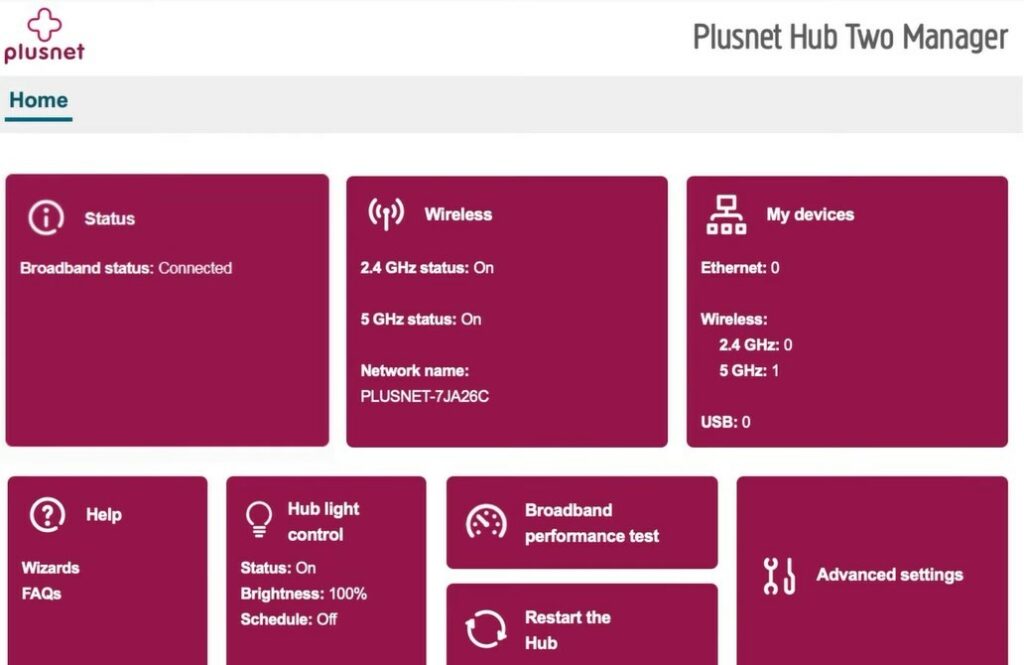
After you enter the Hub Manager admin password, you will be able to change the specific router settings.
NOTE: While you are changing the router settings, be careful. Your network connectivity can be disrupted if the settings are incorrect.
Can’t Login To Your Plusnet Router? Try This
In some cases, the Plusnet router login process can stop at a certain point. If this happens to you, go through the following recommendations. They should help you continue and complete the login process.
Check The Hub Manager Password
If you haven’t changed the default Plusnet admin password, use the default one. It is printed on a removable card behind the router.
Double-check for any typing errors. Also, make sure you are not typing the default Wireless password instead.
Restart Your Plusnet Hub
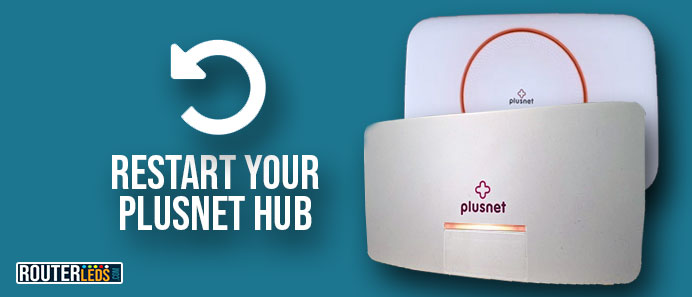
Restart your hub, wait for about 2-3 minutes, and then turn it back on. This process will clear any temporary glitches that are stopping you from logging in successfully.
After the restart, wait for the router to boot up completely and check if your device is still connected to the network. Try to login again.
Update Your Web Browser Or Use A Different One
Check whether your browser is up-to-date. If you haven’t updated your browser for a longer period there may be a compatibility issue with the Plusnet router web interface.
If the issue remains after the browser update, try using a different browser. This can also solve the problem and help you continue.
Disable Your Firewall Or Antivirus For A Few Minutes
In some situations, your firewall or antivirus can interfere with the login process and stop you from accessing the Hub Manager.
To rule this out, disable the antivirus or firewall for a few minutes to see whether this will fix the problem. Make sure to enable the firewall or antivirus later.
Contact Plusnet Support
If you still can’t login to your Plusnet router after trying these solutions, it is recommended to get in touch with Plusnet support.
Factory Reset Your Plusnet Router
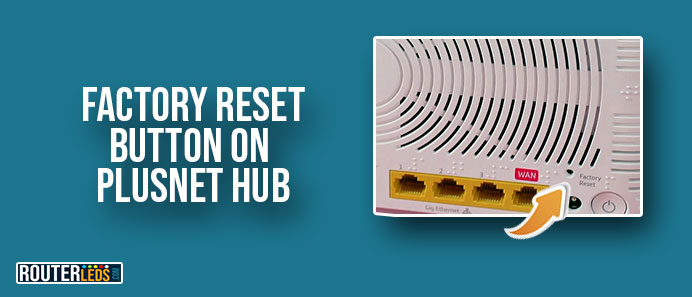
We usually recommend this as a last solution because it requires setting up the network again after the factory reset. This process deletes any custom configurations like WiFi names and passwords, port-forwarding rules, and so on.
To factory reset your Plusnet router, press the reset button and hold it for about 20 seconds.
After the factory reset, you should be able to log in using the default admin password. However, you will still have to set up your Plusnet router.
Frequently Asked Questions
Yes, after you access the Plusnet Hub One admin dashboard, navigate to the wireless settings. Here, you can change your Wi-Fi password. It is recommended to update this password periodically.
If you forget your Plusnet Hub admin password, you will need to reset the router to its factory settings. After resetting, you can use the default admin password.
Plusnet automatically updates the firmware of your Hub One router. However, if you believe your router is out of date, you can check for updates in the router’s admin settings or contact Plusnet support.
Conclusion
As you can see, accessing and managing your Plusnet router settings is simple. It is also essential for network customization, security, and troubleshooting.
We did our best to guide you through the Plusnet router login process, providing clear steps for accessing the Plusnet Hub Manager. If you experience any login issues, check the admin password, restart your hub, and use updated web browsers. Remember, in extreme cases, contacting Plusnet support or performing a factory reset can resolve login issues.
