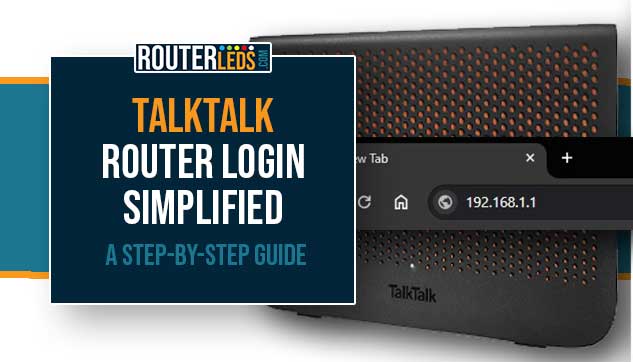
Learn how to log in to your TalkTalk router easily with this guide. We have simplified the process of accessing your TalkTalk router admin settings, making sure you have full control over your home network with ease.
Why Should You Login To Your TalkTalk Router?
Learning how to access the TalkTalk router interface is important if you want to optimize your internet experience. Here are some reasons why you should log in to your TalkTalk router.
- You can update thesecurity settings to protect your network from unauthorized access.
- You can customize your Wi-Fi name and password. It will be easier to recognize your network and control who can connect to it.
- You can implement some restrictions to keep your family safe online.
- It will be easier to diagnose internet issues and keep your network healthy.
Before You Login: A Quick Checklist
Before you start with the TalkTalk router login process, check the following:
- Make sure your device is connected to the TalkTalk network.
- Have your router IP address and admin login details handy (usually found on the router).
- Use a device with a web browser, like a computer, tablet, or smartphone.

TalkTalk Router Login Steps
Follow these simple steps to access your TalkTalk router admin interface.
Open Your Web Browser
It is best to use a device that is already connected to your TalkTalk network. This can be a desktop computer, laptop, tablet, or a smartphone.
Open the web browser on your device. Any standard web browser will do – whether it is Chrome, Firefox, Safari, or Edge. Pick one that you use the most.
Before proceeding, make sure your device is connected to the TalkTalk network, either via Wi-Fi or an Ethernet cable.
Enter The IP Address
The default IP address for most TalkTalk routers is 192.168.1.1. This information is often printed on the router itself (check the back of the router).
Click on the address bar of your browser and type in the IP address. Be careful to avoid typos!

After typing the IP address, press “Enter” on the keyboard or “Go/Return” on the tablet or smartphone. This action directs your browser to go to the router’s login page.
If the IP address is correct, a router login page will appear. This is the gateway to your router settings.
Enter The Admin Username And Password
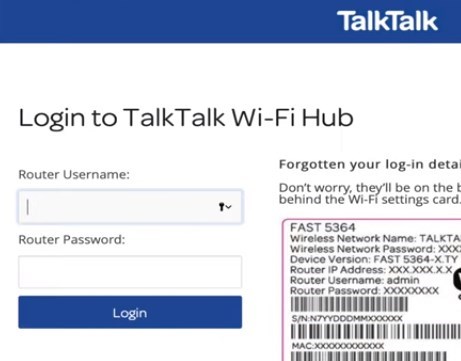
If you haven’t changed your login details, the default username and password are “admin” for both. Check your router sticker as well to confirm this.
Carefully enter the username and password into the respective fields. Remember, these fields are case-sensitive.
Access Granted
After you enter the correct credentials, you will be granted access to the router admin interface.

Here, you can manage your network, set up security protocols, change Wi-Fi settings, enable or disable the TalkTalk router lights, and more.
NOTE: While making changes, be careful. Incorrect settings can disrupt your network connectivity.
Can’t Login To TalkTalk Router? Do This
Sometimes, it can happen that you can’t login to your TalkTalk router. In case this happens, here are some troubleshooting steps you can take to fix this issue.
Let’s check each solution, so you can access your router settings.
Check The Admin Username And Password
If you haven’t changed your TalkTalk router login details, use the default ones. They are printed on a sticker behind the router.
Double-check for typos. The login details are often case-sensitive, so make sure everything is entered correctly.
Reboot Your Router
Reboot your router, wait for about 2-3 minutes, and then turn it back on. This can clear temporary glitches.
After the reboot, check if your device is still connected to the network before trying to login again.
Wait a couple of minutes after you turn the router back on. Routers can take a short while to fully reboot.
Update Your Browser Or Try A Different One
Make sure your browser is up-to-date. Older versions might have compatibility issues with router login pages.
If updating doesn’t work, try accessing the login page with a different browser. Sometimes, certain browsers interact better with router interfaces.
Disable Firewall Or Antivirus Temporarily
Occasionally, firewall or antivirus settings can prevent access to the router login page.
Try disabling these programs temporarily to see if that solves the issue. Remember to turn them back on after testing.
Contact TalkTalk Support
If none of the above steps work, it is time to contact TalkTalk support.
Factory Reset Your TalkTalk Router
This should be your last option as it will erase all your settings including Wi-Fi name, password, and any custom configurations.
To factory reset your TalkTalk router, press the reset button and hold it for about 30 seconds.
After the factory reset, you will be able to login to your router using the default login details printed on the sticker. However, you will also need to set up your router again from scratch.
Frequently Asked Questions
Yes, after logging in, navigate to the settings menu to change your router admin password for increased security.
Yes, as long as the device is connected to your TalkTalk network, you can access the login page using any standard web browser.
Check the label on your router or consult the manual. Alternatively, you can find it in your device’s network settings under “Gateway” or “Router”. If you have Windows on your PC, use the “ipconfig” command in the Command Prompt. The router IP address will be listed as Default Gateway.
Update the firmware, change default passwords, enable WPA2 encryption, and disable WPS for improved security.
Conclusion
In conclusion, knowing the TalkTalk router login process is key to managing and securing your home network. It is a simple process that can greatly improve your internet experience and your network security as well. If you face any issues, try the solutions presented here or contact TalkTalk support.
