Since more and more devices require constant internet connection, from smartphones to smart refrigerators, it is extremely important to keep your network both efficient and secure. This is where the AT&T Smart Home Manager comes into play.
In this article, we are going to explain the Smart Home Manager login steps both on the app and the web version, what it is, and what steps to take if you have any login issues.
What Is AT&T Smart Home Manager?
The AT&T Smart Home Manager is both an app and a web-based tool available for AT&T users who have a compatible Wi-Fi Gateway. It lets users control their home Wi-Fi network and the devices connected to it. Below is a detailed look at both options.
Smart Home Manager App
- Name: AT&T Smart Home Manager app
- Availability: Free download for Android and iOS devices
- Features:
- Set up a guest Wi-Fi network
- Check how much data each device is using
- Change your Wi-Fi name and password
- Keep an eye on your network for any problems or outages
- Test your internet connection speed
- Control the devices connected to your Wi-Fi (like seeing who’s online, naming devices, or setting up parental controls)
- Restart your Wi-Fi gateway
Smart Home Manager Web-Based Tool
- Access: Sign in to Smart Home Manager through att.com using your AT&T Internet User ID and password
- Features:
- Similar features as the app, including managing devices, data usage, network health, and Wi-Fi settings
- May offer additional features or options compared to the app
Key Points
- The app and web version both let you manage your AT&T home Wi-Fi network with most of the same main features.
- Which one you use depends on what you like better:
- The app is handy for managing things when you are out and about and for getting alerts.
- The web version gives you a bigger screen to work on and might have some extra features.
- Depending on the type of Wi-Fi gateway you have, you might not get all the features.
Smart Home Manager Login: Step-By-Step
Let us explain the login steps for both the app and the Web-based tool.
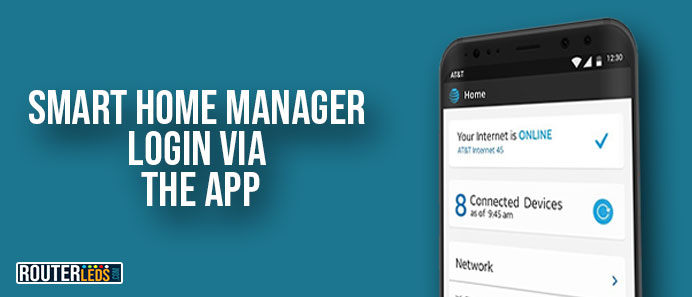
Log In Via The App
Step 1: Download the App
If you haven’t already, download and install the AT&T Smart Home Manager app from the Google Play Store or Apple App Store.
Step 2: Open the App
Once the app is installed, tap on its icon on your home screen to open it. You will be greeted with a welcome screen, which provides an overview of what you can do with the Smart Home Manager.
Step 3: Enter Your AT&T User ID And Password
To access your account, you will need to enter your AT&T User ID and Password. If you are an existing AT&T customer, your User ID is typically your email address. If you haven’t set up an account yet, you can easily do so by clicking on the “Create one now” link provided on the login screen.
Step 4: Navigate the App
After logging in, you will be directed to the Smart Home Manager dashboard. Here, you can monitor and control your connected devices, check network health, change Wi-Fi settings, and much more.
Login In Via The Web
Step 1: Visit The Website
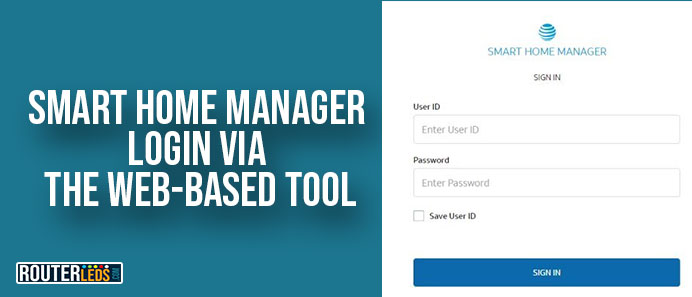
Open your preferred web browser and navigate to myhomenetwork.att.com. This platform is similar to the mobile app but accessible on a larger screen.
Step 2: Access The Login Page
Once on the site, look for the “Log in” button, usually located in the top right corner of the homepage. Clicking this will direct you to the login page.
Step 3: Enter Your Credentials
Similar to the app, enter your AT&T User ID and Password in the required fields. If you are accessing the Smart Home Manager for the first time or have not yet created an AT&T account, select the option to create a new account and follow the instructions.
Step 4: Explore The Web Interface
After successfully logging in, you will have access to the Smart Home Manager dashboard via the web.
What To Do If You Can’t Log In
Experiencing login issues can be frustrating, but there are several steps you can take to resolve them.
Make Sure Ensure Your Device Is Connected To The Internet
One of the most common reasons for login failures is a weak or intermittent internet connection. Make sure your device is connected to Wi-Fi or has a stable cellular data connection.
Confirm Your Username And Password
Entering incorrect login details is another frequent issue. Double-check your username and password for any typos or errors. Remember, passwords are case-sensitive, so ensure your caps lock is off.
If you’ve forgotten your password, use the “Forgot Password” feature on the login page to reset it. You will typically need access to your email or phone number associated with your account to complete this process.
Update The Smart Home Manager App
If you are using the AT&T Smart Home Manager app and experiencing issues, make sure you have the latest version installed. Check the App Store (for iOS devices) or Google Play Store (for Android devices) for any available updates for the Smart Home Manager app and install them.
Clear Cache And Cookies On Your Browser Or App
Over time, your browser or app accumulates cache and cookies, which can sometimes interfere with login processes. Clearing these can resolve login issues.
For web users
Clear your browser’s cache and cookies. You can usually find this option in the settings menu under privacy or history.
For app users
Try clearing the app’s cache in your device’s settings under Apps or Applications. Select the Smart Home Manager app and tap on “Clear Cache.” If this doesn’t work, try uninstalling and reinstalling the app.
Temporarily Disable Any VPN Or Proxy Services
Sometimes, VPNs or proxy services can cause login issues due to IP address conflicts or by triggering security protocols of the Smart Home Manager service. Try disabling any VPN or proxy services and see if that fixes the issue.
If disabling helps, consider configuring your VPN to ensure compatibility with Smart Home Manager. For optimized performance and security, selecting a service in your VPN that allows for specific whitelisting of essential services like Smart Home Manager can greatly enhance your network management experience.
Contact AT&T Support
If none of the above solutions work, there might be a more specific issue with your account or the service itself. In this case, contacting AT&T customer support is the best course of action.
Frequently Asked Questions
Yes, you can access AT&T Smart Home Manager on multiple devices. You will have to install the app on each device or access the web version through a browser. Your settings and preferences are synchronized across all devices.
Yes, Smart Home Manager provides detailed insights into your network’s internet usage. You can view real-time data usage for your entire network or individual devices. This helps manage bandwidth and identify which devices are consuming the most data.
To perform a speed test, open the Smart Home Manager app, and navigate to the Network tab. Here, you will find the option to run a speed test that measures your upload and download speeds.
Conclusion
Whether you prefer the mobile app or the full-screen experience of the web version, the Smart Home Manager login steps are easy to follow.
Remember, maintaining access to your Smart Home Manager is important if you want to have an optimized and secure network. In case you have any login issues, the provided tips should help you log in to your Smart Home Manager quickly.
